
Low FPS in Games? 8 Proven Fixes That Actually Improve Performance on PC
Struggling with low FPS in games? These 8 practical fixes can significantly improve your PC performance without upgrading your hardware.
GAMING GUIDES
MundialGame
4/22/20261 min read
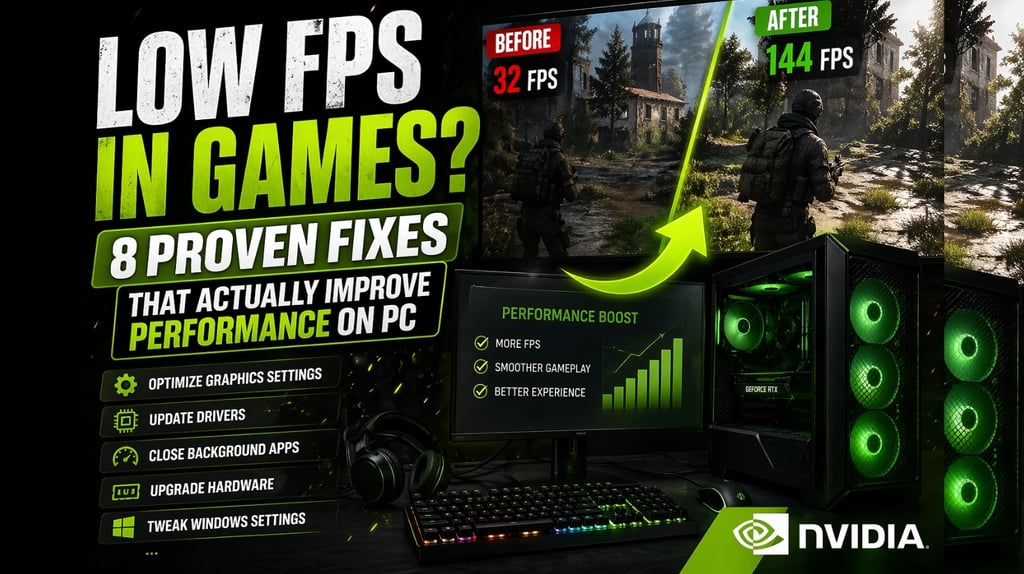
Low FPS Is Killing Your Gameplay — Here’s How to Fix It
Few things are more frustrating than low FPS.
Stuttering, lag, input delay — it ruins everything.
The good news?
You don’t always need a new PC to fix it.
Here are 8 proven ways to boost your FPS right now.
1. Lower the Right Graphics Settings (Not Everything)
Most players lower everything blindly — that’s a mistake.
Focus on:
Shadows
Reflections
Volumetric effects
Anti-aliasing
These have the biggest impact on performance.
2. Update Your GPU Drivers
Outdated drivers = lost performance.
Both NVIDIA and AMD constantly release updates that:
Improve FPS
Fix bugs
Optimize new games
This is one of the easiest wins.
3. Close Background Apps
Your PC might be wasting power on:
Browsers
Launchers
Discord overlays
Updaters
Open Task Manager and clean it up.
You’ll often gain instant FPS.
4. Enable Game Mode (Windows)
Windows has a built-in feature that:
Prioritizes games
Reduces background activity
It’s not magic — but it helps.
5. Adjust Resolution Smartly
Lowering resolution can massively boost FPS.
Try:
1080p → 900p
Or use resolution scaling in-game
You’ll lose a bit of sharpness, but gain smoothness.
6. Turn Off V-Sync (In Some Cases)
V-Sync can:
Add input delay
Lock your FPS
If you’re struggling with performance, test turning it off.
7. Use Performance Mode Settings
Many games now include:
Performance mode
DLSS / FSR / XeSS
These technologies can:
Increase FPS significantly
Maintain decent visual quality
8. Check Your Temperatures
Overheating = performance drops.
If your CPU or GPU gets too hot:
It reduces speed automatically
Make sure:
Fans are working
Airflow is clean
No dust buildup
Bonus Tip: Restart Your PC (Seriously)
It sounds basic — but it works.
A clean restart:
Clears RAM
Stops hidden processes
Fixes random performance issues
Final Thoughts
Low FPS doesn’t always mean your PC is weak.
Most of the time, it’s about:
👉 wrong settings
👉 wasted resources
👉 poor optimization
Fix those, and your performance can improve more than you expect.
SOURCES
NVIDIA and AMD official optimization guides
Microsoft Windows performance documentation
General PC optimization best practices based on industry standards
MUNDIALGAME
Practical gaming guides, honest reviews, and budget-friendly advice for PC, PS5, Xbox, Nintendo Switch, and Steam Deck player
Contact
Newsletter
contact@mundialgame.com
© 2026. All rights reserved.