
How to Reduce Input Lag in FPS Games Without Buying New Gear
Input lag can make FPS games feel slow and unfair. Here are practical settings and fixes that can make your gameplay feel more responsive without buying new hardware.
GAMING GUIDES
Davi .A - MundialGame
5/10/20264 min read
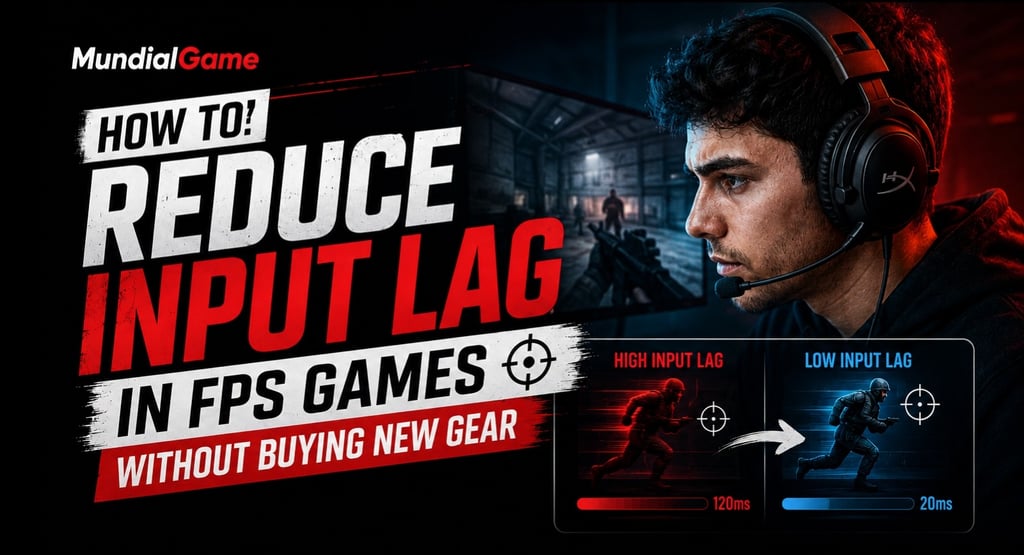
How to Reduce Input Lag in FPS Games Without Buying New Gear
Input lag is one of those problems that can make a game feel “wrong” even when your FPS looks fine.
You move the mouse.
You click.
You react fast.
But somehow, the game feels delayed. 🎯
In FPS games, that delay can be the difference between landing the shot and losing the fight.
The good news?
You do not always need a new mouse, monitor, or GPU to fix it.
A lot of input lag comes from settings, background processes, display options, and poor optimization.
Let’s fix that.
What Is Input Lag?
Input lag is the delay between your action and what happens on screen.
For example:
You move your mouse
You press a key
You click to shoot
The game responds slightly later
In fast games like Valorant, CS2, Fortnite, Apex Legends, and Call of Duty, even small delays can feel terrible.
And here’s the tricky part:
👉 input lag is not always the same as low FPS.
You can have decent FPS and still feel delay if your settings are wrong.
1. Turn Off V-Sync First
V-Sync can make gameplay look smoother by reducing screen tearing.
But in many FPS games, it can also add noticeable input delay.
For competitive games, try this:
Turn V-Sync off in-game
Turn V-Sync off in your GPU control panel
Use G-Sync or FreeSync if your monitor supports it
🎮 For FPS games, responsiveness usually matters more than perfect visual smoothness.
2. Use Fullscreen Mode, Not Borderless
Borderless window mode is convenient.
You can alt-tab faster, manage Discord, and move between apps more easily.
But for competitive gameplay, exclusive fullscreen can sometimes reduce input delay and improve consistency.
Try switching your game to:
Fullscreen
Instead of:
Borderless Windowed
It will not fix every game, but in many cases, it makes the game feel more direct.
3. Set a Smart FPS Cap
This part is important.
Many players think unlimited FPS is always better.
Not always.
If your PC is constantly maxing out the GPU, input latency can actually get worse.
A smart FPS cap can make gameplay feel smoother and more stable.
Example:
60Hz monitor → cap around 60–75 FPS
120Hz monitor → cap around 120–141 FPS
144Hz monitor → cap around 141–144 FPS
165Hz monitor → cap around 160–165 FPS
The goal is not just high FPS.
The goal is stable and responsive FPS. ⚡
4. Enable Low Latency Features
Depending on your GPU and game, you may have access to latency-reduction settings.
For NVIDIA users, check:
NVIDIA Reflex if available in the game
Low Latency Mode in NVIDIA Control Panel
For AMD users, check:
Radeon Anti-Lag
Radeon Boost in supported games
These settings are designed to reduce delay between your input and what you see on screen.
If your game supports NVIDIA Reflex, that should usually be your first option.
5. Lower Heavy Graphics Settings
Some graphics settings make your game look better but also increase render delay.
In FPS games, start by lowering:
Shadows
Reflections
Motion blur
Volumetric effects
Ambient occlusion
Ray tracing
Motion blur should almost always be off for competitive play.
It makes movement look cinematic, but it can reduce clarity and make aiming feel less precise.
🔥 Cleaner visuals usually beat prettier visuals in FPS games.
6. Close Background Apps
This sounds basic, but it matters.
Before playing, close apps like:
Extra browser tabs
Game launchers you are not using
Recording software
RGB control apps
Heavy overlays
Unnecessary update tools
Discord is fine if you need it, but overlays can sometimes cause performance issues.
The fewer background processes your PC has to manage, the more consistent your game can feel.
7. Check Your Mouse Settings
Your mouse settings can also make gameplay feel delayed or inconsistent.
Make sure:
Mouse acceleration is off
Polling rate is set correctly
DPI is not extremely high for no reason
In-game sensitivity feels controllable
On Windows, disable “Enhance pointer precision.”
For most FPS players, raw input should be enabled inside the game if available.
This helps the game read your mouse movement more directly.
8. Use Game Mode, But Don’t Expect Magic
Windows Game Mode can help prioritize gaming performance.
It is not a miracle button, but it can reduce background interruptions.
Turn it on and test your game.
Also make sure your power mode is not set to a battery-saving or low-performance mode.
For desktops and gaming laptops, use a performance-focused power setting when playing.
9. Avoid Playing While Downloading Updates
If Steam, Epic Games, Windows Update, or another launcher is downloading in the background, your game may feel worse.
This can affect:
frame stability
ping
storage usage
CPU usage
Before launching a competitive match, check if anything is updating.
It sounds simple, but this is one of the most common hidden causes of bad gameplay feel.
Best Quick Settings Checklist
Here’s the quick version if you want the fastest fix:
Turn off V-Sync
Use Fullscreen mode
Disable motion blur
Lower shadows and reflections
Enable NVIDIA Reflex or AMD Anti-Lag if available
Close background apps
Disable mouse acceleration
Use a stable FPS cap
Stop downloads before playing
This combination can make your game feel much more responsive without spending money.
Final Thoughts
Input lag can make a good PC feel bad.
But before buying a new mouse, monitor, or graphics card, fix the basics first.
In many cases, the problem is not your hardware.
It is:
bad settings
unstable FPS
background apps
display mode
unnecessary visual effects
For FPS games, responsiveness should always come before graphics.
A cleaner, faster-feeling game will help you play better than ultra settings ever will. 🎮
FAQ
Does higher FPS reduce input lag?
Usually, yes. Higher and more stable FPS can reduce input delay, but unstable unlimited FPS can sometimes feel worse than a smart FPS cap.
Should I turn off V-Sync for FPS games?
For competitive FPS games, yes. V-Sync can add input delay, so turning it off is usually better for responsiveness.
Is fullscreen better than borderless for input lag?
In many games, fullscreen can feel more responsive than borderless windowed mode. It is worth testing.
Does motion blur increase input lag?
Motion blur does not always directly increase input lag, but it reduces visual clarity and can make aiming feel worse.
Sources
MUNDIALGAME
Practical gaming guides, honest reviews, and budget-friendly advice for PC, PS5, Xbox, Nintendo Switch, and Steam Deck player
Contact
Newsletter
contact@mundialgame.com
© 2026. All rights reserved.